Sonarr Quality Profiles & Custom Formats: A Practical Setup Guide
Quality Profiles are where Sonarr decides what counts as good enough and what is worth upgrading. Custom Formats are the knobs that let you fine-tune that decision. Used well, the two together keep your library consistent without making Sonarr chase every release that appears.
There is no single correct profile. The right setup depends on your playback devices, storage, bandwidth, and tolerance for weird edge cases. Some people want small WEB-DL files that direct play everywhere. Some want 4K HDR. Some care about lossless audio. The goal is to make Sonarr express your preference clearly instead of downloading whatever happens to match a broad quality label.
Tip
Keep a note of which formats your actual playback devices support: Dolby Vision, HDR10+, TrueHD, DTS-HD, AV1, HEVC, and so on. A technically “better” release is not better if your TV or streamer handles it badly.
Before you start
Two things make the rest easier:
- Quality size limits: set sensible minimum and maximum file sizes per quality.
- Naming rules: keep imports predictable so Plex, Jellyfin, or Emby can identify files cleanly.
You also need your Custom Formats imported before scoring them in a profile. Imported formats do nothing by themselves. Sonarr has to see them inside a Quality Profile with scores.
Where Custom Formats live
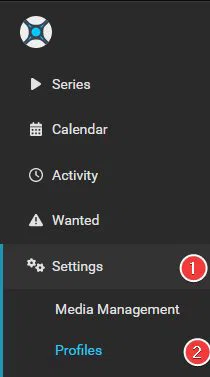
In Sonarr, Custom Formats are configured per profile, not globally. Go to Settings -> Profiles and open the profile you want to tune.
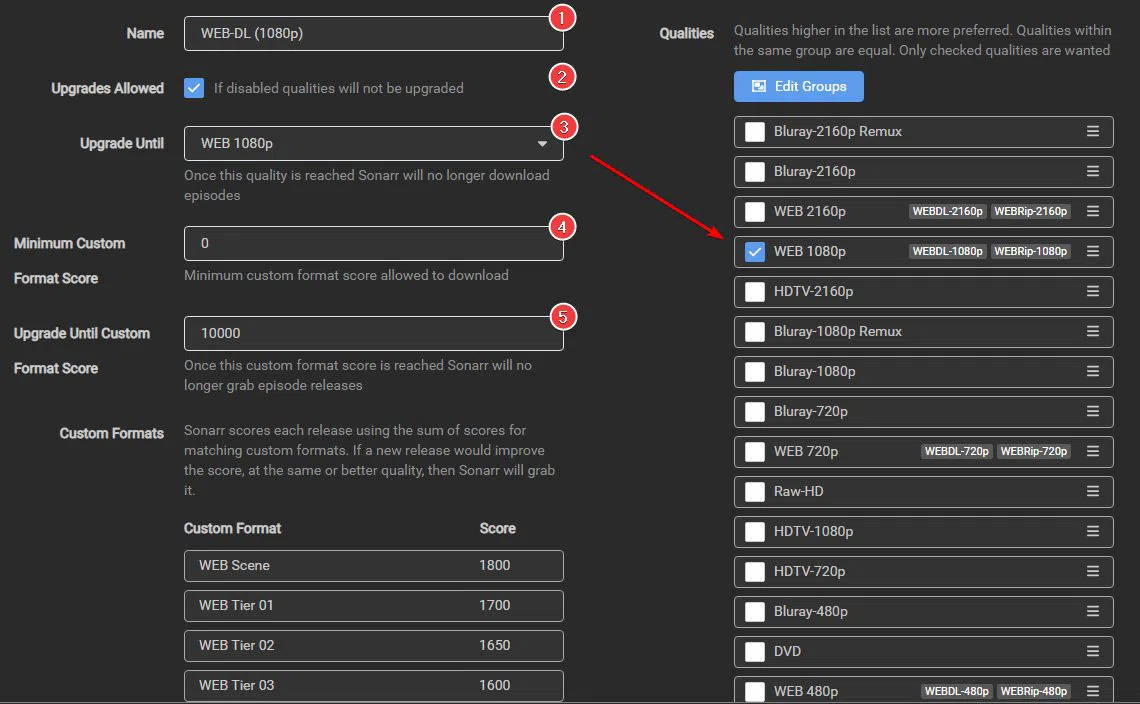
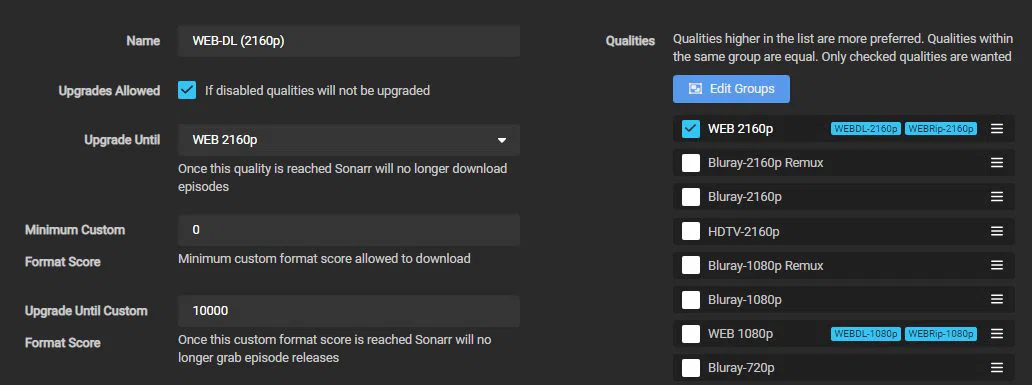
At the top of the profile you will find the main controls:
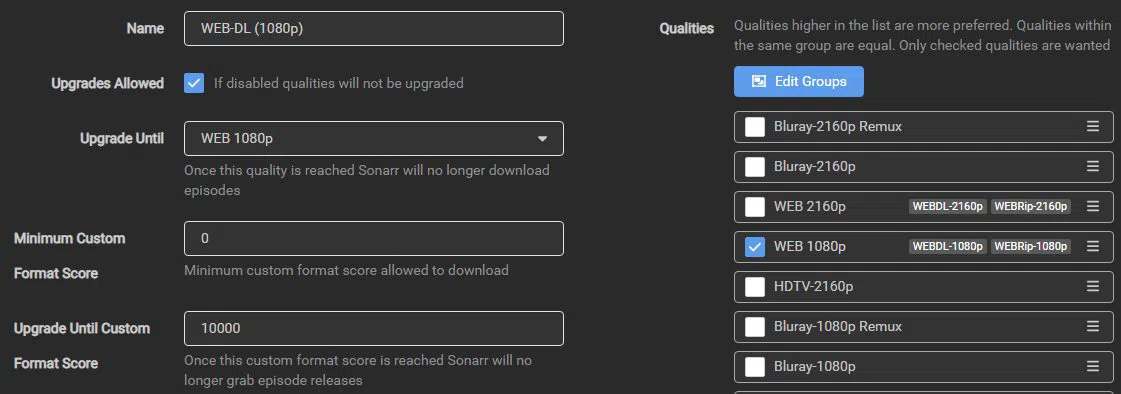
- Name: what the profile is called.
- Upgrades allowed: whether Sonarr may replace an existing file with a better one.
- Upgrade until quality: once a release reaches this quality, quality-based upgrading stops.
- Minimum Custom Format score: the lowest total score a release may have and still be downloaded.
- Upgrade until Custom Format score: Sonarr keeps upgrading on Custom Formats until a release hits this score.
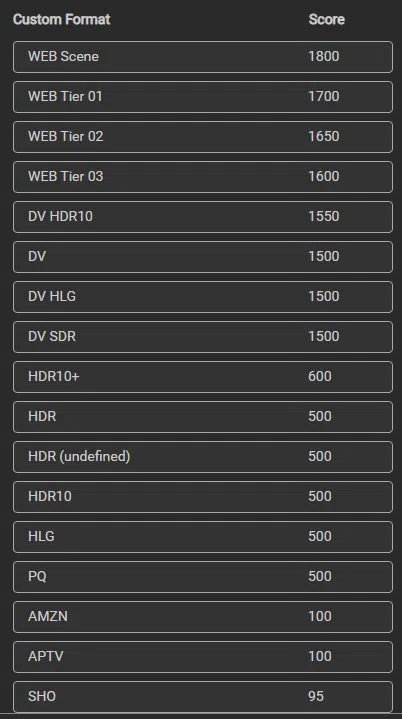
Scroll to the bottom of the profile and you will see every imported Custom Format listed, ready for scores.
How scoring works
A few principles keep you out of trouble:
- Quality comes first. Custom Formats fine-tune within the quality ladder; they do not replace the ladder.
- A score of
0is informational. The format is detected and shown, but it does not make a release more or less desirable. - Positive scores reward a release. Use them for preferred sources, release groups, HDR formats, or other traits you actually want.
- Negative scores punish a release. Use them for traits you want to avoid.
- The minimum score is a gate. Anything below it is rejected.
- Large negative scores are bans. They should be low enough that even good positive matches cannot rescue the release.
- Upgrade-until stops churn. Once a file reaches the target score, Sonarr stops replacing it just because something slightly better appeared.
The biggest mistake is changing scores casually. Community profiles usually rely on groups of scores that were designed together. If you pull one piece out or double one number because it sounds important, you can create rejected releases, bad upgrades, or endless churn.
Choosing a profile target
Most Sonarr users should start with one of these targets.
WEB-1080p
A good default for people who want reliable 720p or 1080p WEB-DL releases.
Required Custom Format groups usually include:
- Unwanted: blocks problematic releases.
- Required miscellaneous helpers: small rules the profile depends on.
- General streaming services: scores releases from major streaming sources.
- High-quality source groups: rewards trusted groups.
Optional groups can add preferences, but do not add optional rules until you understand what they change.
Note
HD-audio Custom Formats usually do not belong in WEB profiles. WEB-DL releases rarely ship with lossless audio. If lossless audio is a requirement, look at Remux profiles instead.
WEB-2160p
Use this when you want 4K WEB-DL releases and your playback hardware handles them well.
Required Custom Format groups usually include:
- HDR formats: Dolby Vision, HDR10, HDR10+, and related format handling.
- Unwanted: blocks problematic releases.
- Required miscellaneous helpers.
- General streaming services UHD.
- High-quality source groups.
You can fold a 1080p tier into a 2160p profile if you want Sonarr to grab a good 1080p file first, then upgrade to 4K later.
HDR format groups
If you own a 4K TV and a player that handles HDR well, add HDR Custom Formats to your 2160p profile. The details matter:
- Dolby Vision support varies by profile and device.
- HDR10+ support is not universal.
- Some devices can play HDR but make poor choices when tone mapping.
- A release that looks ideal on paper may still be the wrong match for your living-room hardware.
This is why it helps to test a few real files before letting Sonarr upgrade a large library.
Older shows and quality ordering
For older series, you may want to enable WEB-720p, HDTV-720p/1080p, or Bluray-720p/1080p. Place them above or below WEB-1080p depending on what you would rather grab.
Ordering in the quality list matters even for qualities you have not checked:
- Items higher in the list are preferred.
- Qualities in the same group are treated as equal.
- Only checked qualities are wanted.
- A higher but unchecked quality can still affect how lower qualities are considered.
Drag your preferred quality to the top. Whatever sits at the top also appears first in manual searches.
How this connects to Helmarr
Once profiles are set, most day-to-day work is monitoring: what Sonarr grabbed, whether the download client is moving, whether an import failed, and whether the file later needs cleanup or health checks.
Helmarr helps with that wider workflow. It gives you native iPhone, iPad, and Mac visibility into Sonarr, Radarr, download clients, indexers, request tools, server status, and Tdarr monitoring without opening every web UI separately.
If you also run Tdarr, use it after Sonarr imports files to standardize codecs, remux containers, remove unwanted streams, or run health checks. Sonarr decides what to grab; Tdarr helps keep the resulting library tidy.
FAQ
Why only WEB-DL profiles here?
WEB-DL hits a good balance of quality, file size, and availability. Remuxes are the move when you want maximum quality and lossless audio.
What does a score of 0 do?
It makes a Custom Format informational. Sonarr detects and displays it, but it does not affect grabbing or upgrading.
Why use a minimum Custom Format score?
It gives Sonarr a floor. Releases below that score are rejected, which is how hard bans and strong preferences become enforceable.
Should I score x264 vs x265 directly?
Usually no. Codec-based scoring causes more trouble than people expect. Let quality, source, device support, and tested profiles drive the choice.
Why am I seeing repacks and propers?
Streaming services sometimes republish fixed versions. A good profile can handle that automatically without you manually chasing replacements.
Wrapping up
Start from a tested profile, keep related Custom Format groups together, and change scores only when you understand the effect. Get the quality ladder right first. Then let Custom Formats tune the details to match your devices and preferences.